You just hit send, and somewhere between the click and the confirmation sound, you realized the mistake. Wrong attachment, wrong recipient, a typo in the subject line that changes the whole meaning. Before you panic, know this: figuring out how to recall an email in Outlook isn’t complicated, but whether it actually works depends heavily on which version of Outlook you and your recipient are using.
That distinction matters more than most guides admit. This walkthrough sorts the process by version first, so you know your real odds before you even attempt the recall.
Check This First: Are You Even Eligible?
Before touching any menu, confirm two things. First, are you and the recipient both on Microsoft 365 work or school accounts inside the same organization? If either of you is on a personal account like Gmail or Outlook.com, recall isn’t available at all, full stop. Second, which Outlook client are you using to send the original message, because that answer changes everything else in this guide?
Personal accounts should skip straight to the delay-based prevention method near the end of this article, since recall simply won’t appear as an option.
Your Outlook Version Determines Your Odds
This is the part most people skip, and it’s the reason so many recall attempts end in disappointment.
Classic Outlook desktop: the roughly 40% club
The original “Recall This Message” feature runs locally on the client and only works if the recipient’s copy of Outlook happens to check for the recall request before they open the email. Historically, this method succeeds around 40% of the time. It also strictly requires the message to still be unread; once opened, the window closes.
New Outlook and web: the roughly 90% club
Microsoft rebuilt recall to run in the cloud through Exchange Online rather than on the desktop client. Because the recall now happens server-side, it doesn’t matter whether the recipient’s Outlook is open, online, or even running. This version reaches close to a 90% success rate within the same organization, and in a further update, it can even pull back messages the recipient has already opened, provided your organization’s admin has enabled that setting.
Mac and mobile: the exceptions
Recall isn’t currently available in Outlook for Mac or in the Outlook mobile apps for iOS and Android. If you sent the message from either of these, your move is to switch over to Outlook on the web, which runs the same cloud-based recall as new Outlook for Windows.
The Actual Steps, By Version
Once you know which category you’re in, the steps themselves are short.
Classic Outlook walkthrough
- Open Sent Items and double-click the message to open it in its own window.
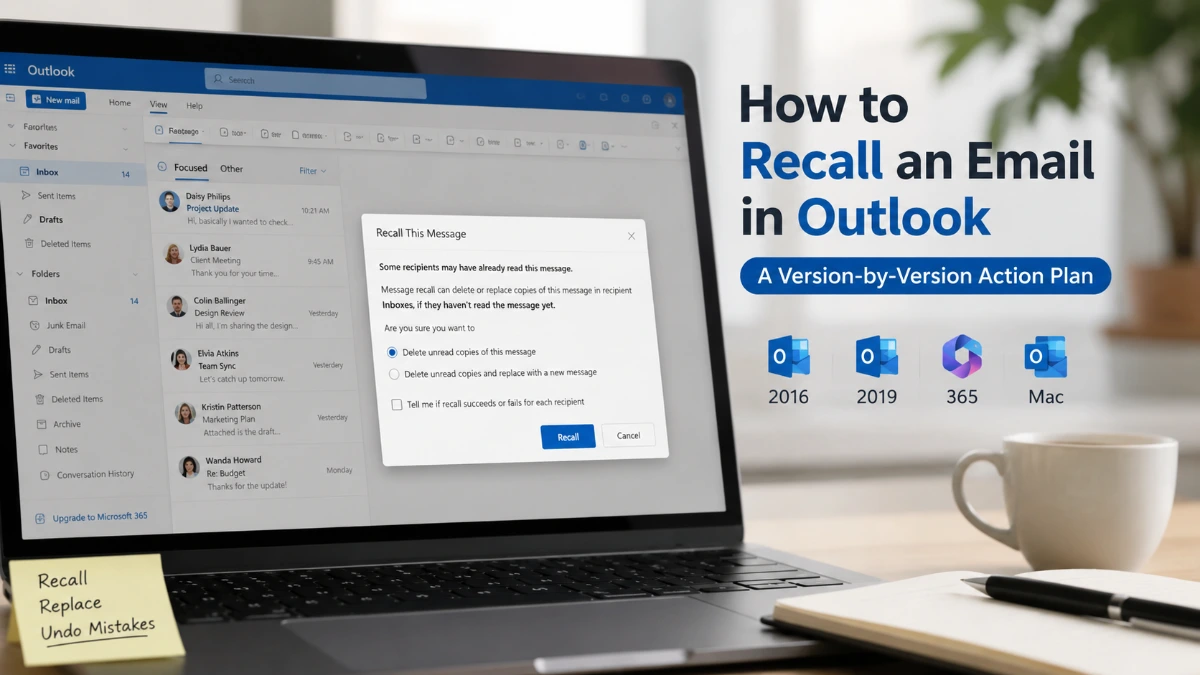
- Go to the Message tab, click Actions, then choose Recall This Message. (Simplified Ribbon users: check More Commands, then Actions.)
- Pick Delete unread copies of this message, or Delete unread copies and replace with a new message if you want to send a corrected version.
- Tick the box for a success/failure confirmation and click OK.
New Outlook and web walkthrough
- Open the sent message from Sent Items in either new Outlook for Windows or Outlook on the web.
- Click the three-dot More Actions menu, then Advanced Actions, then Recall Message.
- Confirm the recall in the dialog box that appears.
This is the version of how to recall an email in Outlook that most people should default to when it’s available, simply because the success rate is dramatically higher.
How Outlook Tells You What Happened
After you submit any recall attempt, Outlook sends a Message Recall Report to your inbox, usually within about 30 seconds for the cloud-based version, though classic Outlook can take longer. That report sorts every recipient into one of three buckets: Recalled, Pending, or Failed. Keep in mind this report link typically stays active for only about 7 days, so check it promptly if you need to confirm the outcome for compliance or record-keeping purposes.
Reading the Fine Print: Why Recalls Still Fail
Even the improved cloud version isn’t foolproof. The most common reasons a recall attempt doesn’t go through:
- The recipient is on a personal account rather than Microsoft 365.
- The recipient sits in a different organization’s tenant that hasn’t explicitly allowed cross-tenant recall.
- An inbox rule forwarded or moved the message before recall could reach it.
- The mailbox is hosted on-premises instead of in Exchange Online.
- You’re using classic Outlook and the recipient already opened the message.
Notice that the last reason only applies to the classic client. This is exactly why version awareness matters before you attempt how to recall an email in Outlook: the same mistake might be recoverable in one version and permanent in another.
If Recall Fails, Here’s Your Next Move
Don’t sit and wait for the recall report if the situation is urgent. Send a short, direct follow-up email acknowledging the error and correcting it, ideally within minutes rather than hours. If the mistake involved sensitive information, such as confidential attachments or the wrong recipient entirely, pick up the phone or send a quick message on another channel. Recall failing doesn’t mean you’re out of options, it just means email alone won’t fix it.
The Smarter Fix: Build In a Delay Before You Ever Hit Send
Given that even the best version of recall tops out around 90%, and only inside your own organization, many professionals treat prevention as the real solution rather than a backup plan.
| Platform | What it does | Typical delay | Where to set it up |
| New Outlook / Outlook on the Web | Holds the message briefly with an undo option | 5–30 seconds | Settings, then Mail, then Compose and reply |
| Classic Outlook | Defers sending via a mail rule | 1 minute minimum | File, then Manage Rules & Alerts |
| Outlook for Mac | Delays a single message manually | Set per email | Options tab, then Delay Delivery |
The advantage of this approach is that it works no matter who you’re emailing, internal or external, Microsoft 365 or Gmail, because the message never actually leaves your outbox during the delay window. Pair a short send-delay habit with a quick re-read before clicking send, and you’ll rarely need to attempt how to recall an email in Outlook in the first place.
FAQs
What’s my best chance of a successful recall?
Use new Outlook or Outlook on the web rather than the classic desktop client. The cloud-based version succeeds roughly 90% of the time within the same organization, compared to about 40% for classic Outlook.
Can new Outlook recall a message the recipient already opened?
Yes, but only if your organization’s admin has enabled that specific setting; otherwise, an opened message can’t be pulled back even in new Outlook.
Is recall possible if I sent the email from my phone?
Not directly. Switch to Outlook on the web or a desktop client to trigger the recall, since the mobile apps don’t support the feature.
Why did my recall fail even though the recipient is a coworker?
Check whether an inbox rule moved the message, whether their mailbox is on-premises rather than Exchange Online, or whether you were using classic Outlook after they’d already opened it.
Does Mac support recall at all?
No. Use Outlook on the web instead, since it runs the same cloud-based recall as new Outlook for Windows.
How long do I have to check the recall’s outcome?
The Message Recall Report link generally remains valid for about 7 days after you receive it.
Is there a way to stop an email from sending in the first place?
Yes, both new Outlook and Outlook on the web offer a short 5–30 second undo window before the message actually leaves your outbox.
What should I do if recall fails and the information was sensitive?
Contact the recipient directly through phone or another messaging channel rather than relying solely on a follow-up email.
Does recall work across different companies?
Rarely. It generally only works within your own Microsoft 365 tenant unless both organizations have specifically enabled cross-tenant recall.
Can I set how far back new Outlook is allowed to recall a message?
That setting is controlled by your organization’s admin, who can define a maximum recallable message age ranging from 5 minutes up to 10 years.